The screens you use day to day once bookings come in: Today, Reports, the Payments list, housekeeping, owner statements and the activity log – what each figure means and how to export it.
Which of these are included in every site and which need JetBookIn Pro:
| Screen | Where | Tier |
|---|---|---|
| Today | Today → Home | Included |
| Reports – Performance, Activity log | Revenue → Reports | Included |
| Reports – Channels | Revenue → Reports → Channels | Pro (module Channels & commission) |
| Reports – Stay declarations, ΤΑΚΚ, Accounting export | Revenue → Reports | Greece pack (module Greek compliance) |
| Payments | Revenue → Payments | Included |
| Housekeeping | Bookings → Housekeeping | Pro (module Housekeeping) |
| Owners | Revenue → Owners | Pro (module Owners & statements) |
Pro modules are switched on and off in Settings → Modules. When a module is off, its screen disappears from the menu; nothing is deleted.
One property or all of them
If you have more than one property, the top bar of the dashboard has a property selector. Choose All properties or one property: Today, Reports, Payments and Housekeeping then show only that property. The choice is remembered on this computer.
The Today screen
Open JetBookIn in the WordPress menu and you land on Today, with the date at the top and a New reservation button. Read it from top to bottom: anything that needs you comes first.

Notices at the top
These only appear when there is something to do:
- Background jobs are not running on time (red, on every screen): calendar imports, reminders and automatic charges may be late. How to fix opens Settings → System. See Settings → System.
- Guests cannot book … rate online: a rate asks for a deposit but no payment method is set up. Click Set up payments.
- Licence notices (Today only): your licence expires within 30 days, has expired, or could not be confirmed for this site.
- Possible double bookings: a platform calendar shows a reservation on dates where you already have a booking. Check both platforms, move one guest, then click Mark resolved.
- Guests can’t book far ahead: a room type has no open dates with a price after a certain date. Add prices in Rates & Availability, or let JetBookIn keep the calendar open (Settings → General → Keep the calendar open).
- ΤΑΚΚ needs JetBookIn Pro / ΤΑΚΚ is not added to your prices: for properties in Greece without the Tourist taxes module. See Greece.
- Changed on the platform: a platform booking is No longer listed – probably cancelled, or was Moved, but the new dates are taken. Click it to open the booking.
- Payments to check: a payment on a cancelled booking (refund the guest), a payment that arrived after the hold expired, or an online payment pending for over 30 minutes. Each line opens the Payments list already filtered.
The figures row
- Booked this month: the value of this month’s bookings, with what is still awaiting payment underneath.
- Guests in house: confirmed or checked-in stays that include tonight.
- Occupancy next 30 days.
- Calendar sync: Healthy, … failing, … not reading ours (a platform has stopped reading your calendar link) or Not set up, with the time of the last successful sync.
Arrivals and departures
Arrivals today and Departures today list each guest with the booking reference, where it came from, the party size, the status and the total. Click a guest to open the booking.
Arrivals with a phone number have a WhatsApp button. One click opens WhatsApp (on your phone or computer) with the guest’s check-in instructions already written, in the guest’s language – you only press send. It is free: nothing is sent through JetBookIn. If the phone number has no country code, you get No usable phone number: add it with the country code, e.g. +39 …; fix the number in the booking and try again. The instructions come from Property → Policies → Check-in instructions (see E-mails).
Latest bookings and this month by channel
Latest bookings shows the bookings of the last 7 days (View all opens Reservations). This month by channel counts this month’s bookings and their value per source – Website, Manual, Booking.com, Airbnb and so on – and links to the bookings still awaiting payment.
Reports: Performance
Go to Revenue → Reports. The Performance tab opens first.
Period and comparison
- Period: This month (default), Last month, Next 30 days, Last 30 days, This year, Last 12 months, Next 12 months or Custom dates (From / To). Future periods work too: they show what is already on the books.
- Compare with: vs previous period (default), vs same dates last year or No comparison. Each figure then shows the change in % – green when better, red when worse – and a line says which dates it was compared with.
- Download CSV saves the period’s figures.
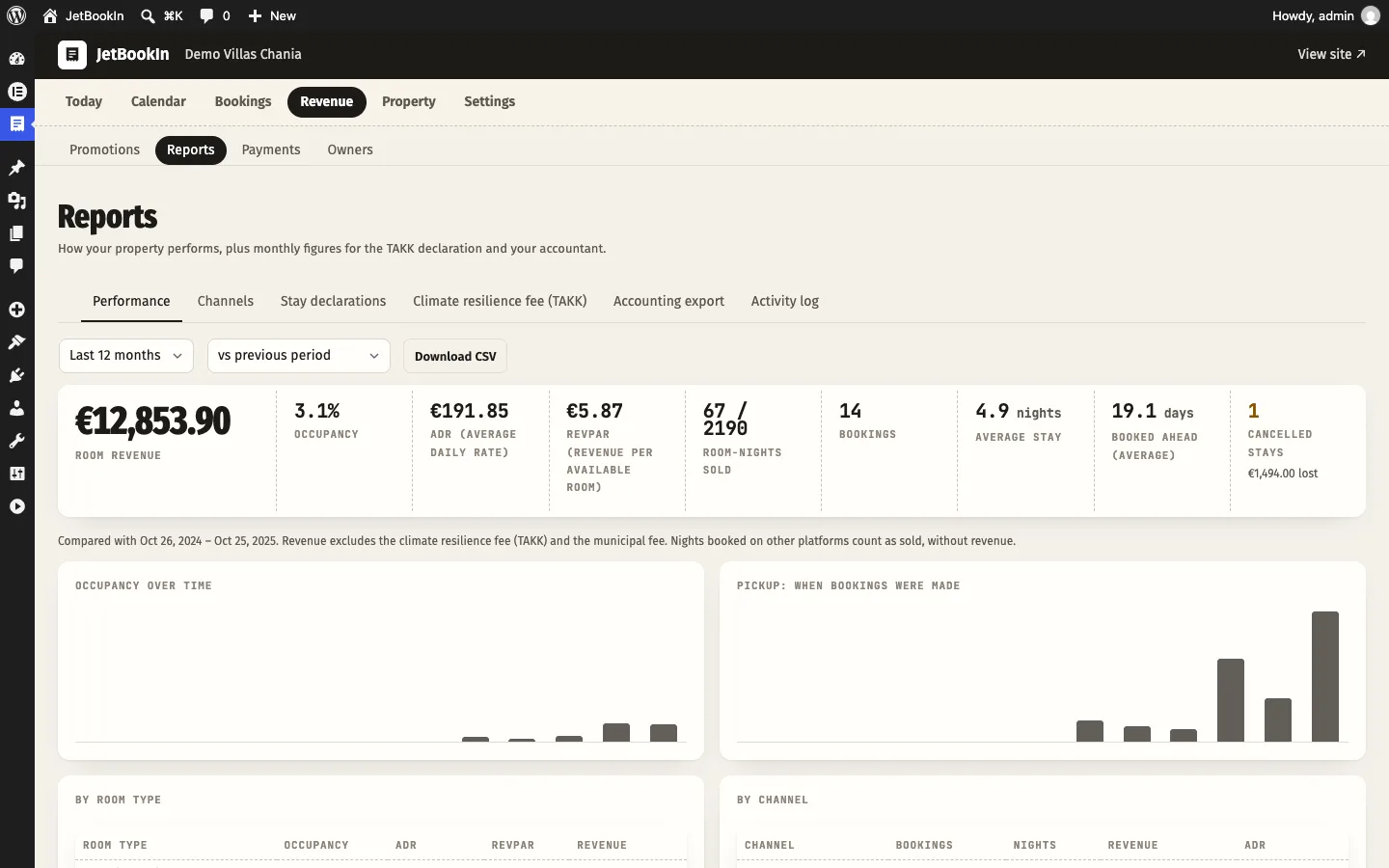
What the figures mean
| Figure | What it is |
|---|---|
| Room revenue | Booking totals without the stay taxes (ΤΑΚΚ, municipal fee), spread evenly over each booking’s nights. A stay that runs over the edge of the period counts only its nights inside it. |
| Occupancy | Room-nights sold ÷ room-nights available. Available = units × nights, less nights you closed yourself. |
| ADR (average daily rate) | Room revenue ÷ nights booked here. |
| RevPAR (revenue per available room) | Room revenue ÷ room-nights available. |
| Room-nights sold | Sold / available. Nights booked on other platforms (from calendar sync) count as sold, without revenue. |
| Bookings, Average stay, Booked ahead (average) | Number of bookings, nights per booking, and days between booking and arrival. |
| Cancelled stays | How many, and the revenue lost. |
Below the figures: Occupancy over time and Pickup: when bookings were made (bars per day; per week for periods over a month, per month for periods over three months – hover a bar for its numbers), then By room type (occupancy, ADR, RevPAR, revenue) and By channel (bookings, nights, revenue, ADR per source; platform calendars show nights only).
Reports: Channels Pro
The Channels tab answers: where do my nights come from, what do the platforms take, and what does booking direct save me? It opens on the Last 12 months (or the next 12, if all your stays are still ahead).
- Booked direct: the share of nights booked on your website or by you.
- Commission paid to platforms.
- Saved by booking direct: what a platform would have taken on your direct bookings. It uses the average commission platforms took on your reservations in the last 12 months; until you have platform reservations with their commission entered, it uses 15%, which you can change right there (Use this rate).
- Direct revenue and its share of all revenue.
- Where your nights came from: a coloured bar per channel.
- By channel: bookings, nights, Guests paid, Commission, You received (the platform’s payout) and Per night.
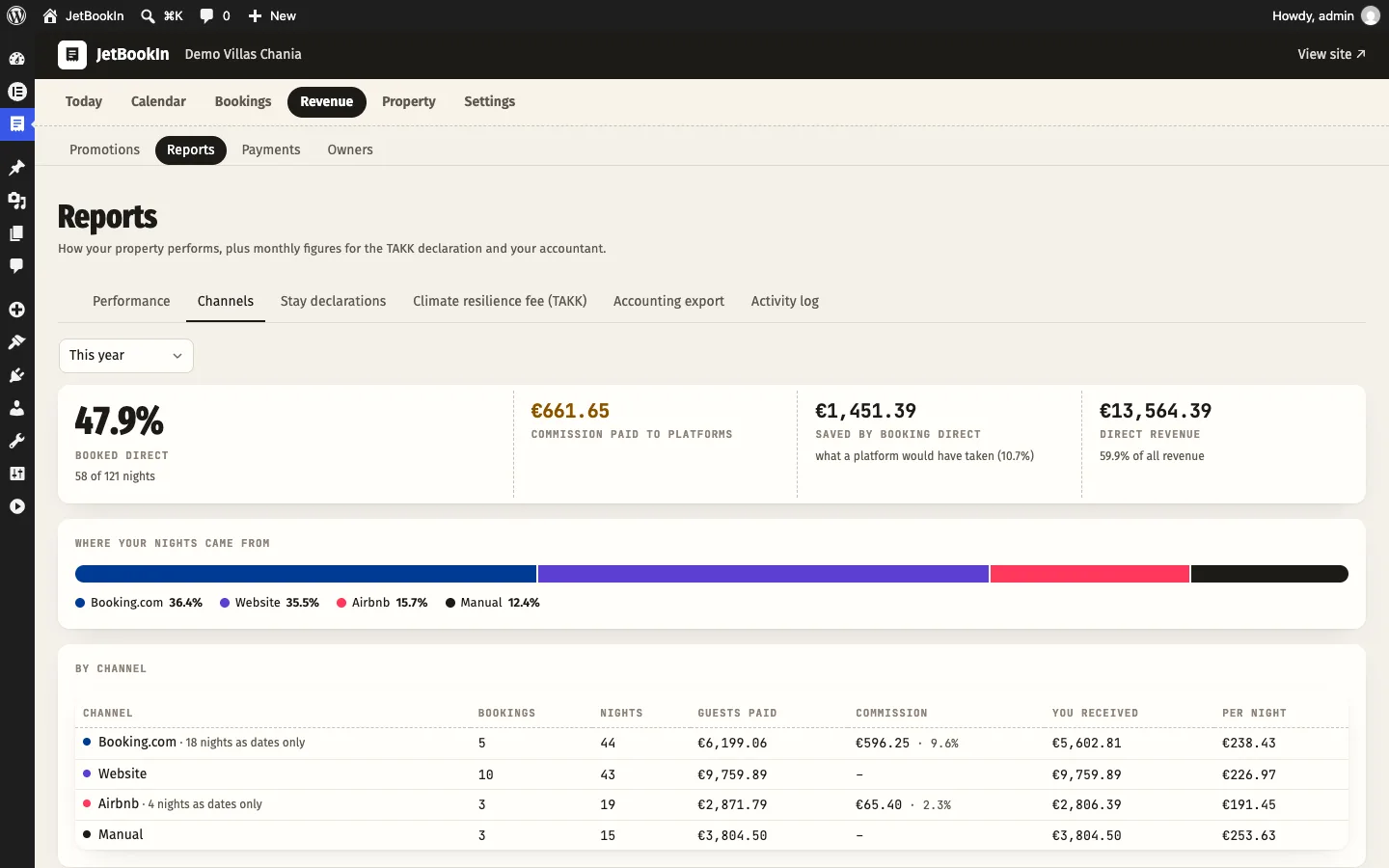
Tip: platform calendars send dates only, without money. To see their revenue and commission here, complete those stays in Calendar → Room calendar (click the bar). The report tells you how many nights are still dates only and how many platform reservations have no commission entered.
Friends & family stays and cancelled bookings are left out.
Reports for Greece Greece pack
With the Greek compliance module on, Reports has three more tabs with a month picker: Stay declarations, Climate resilience fee (ΤΑΚΚ) and Accounting export. They are explained on the Greece page.
The Payments list
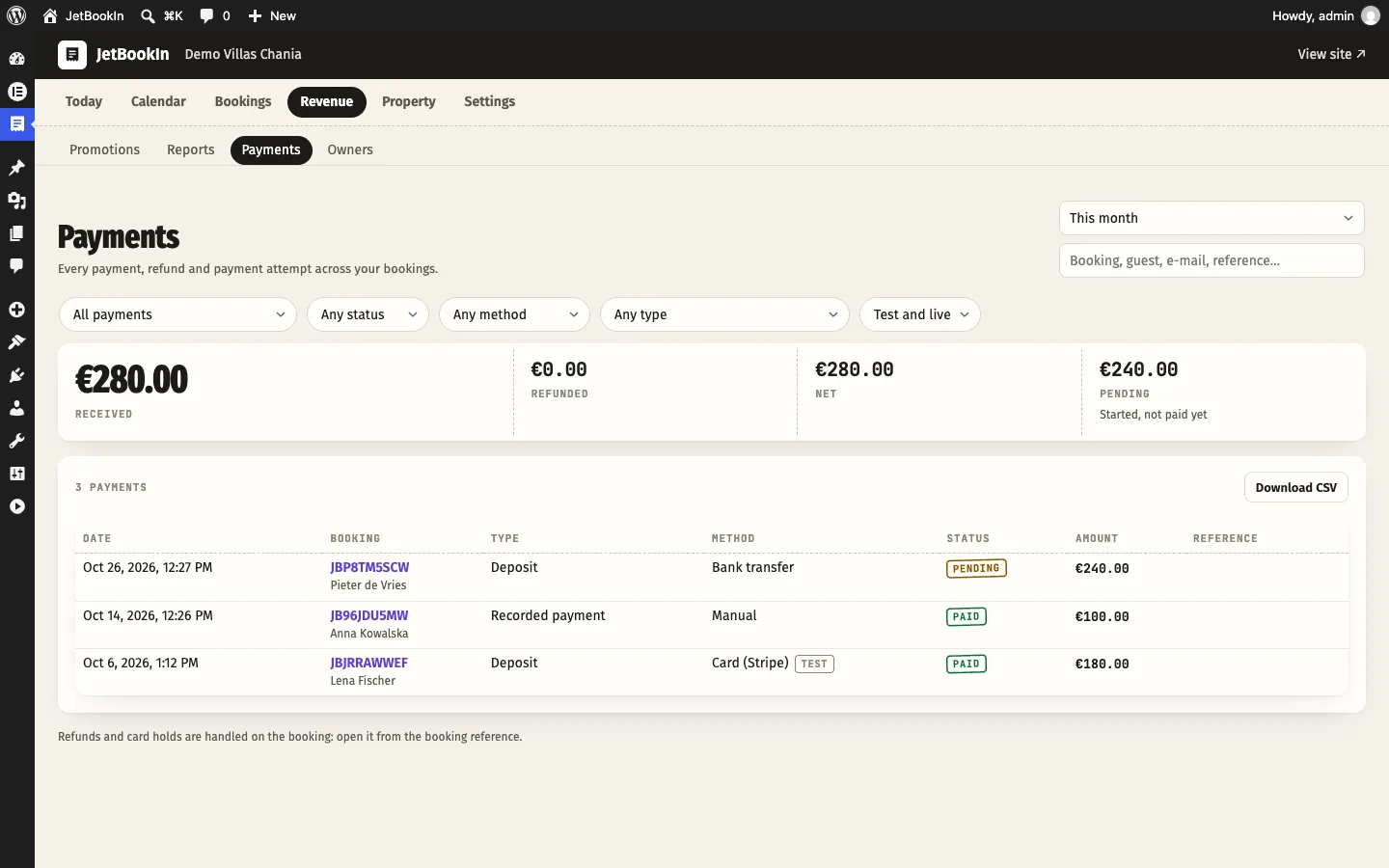
Revenue → Payments lists every payment, refund and payment attempt across your bookings.
Filters
- Period (top right): This month (default), Last month, Last 30 days, This year, All time, Custom dates….
- Search: booking, guest, e-mail or payment reference.
- Needs a look: All payments, Needs a look, or one problem: Booking cancelled – refund due, Pending over 30 minutes, Paid after the hold expired.
- Status: Pending, Paid, Held on card, Failed, Expired, Released.
- Method: Stripe, Viva, PayPal, Card (bank), IRIS, Bank transfer, Recorded by staff.
- Type: Deposit, Balance, Recorded payment, Extra charge, ΤΑΚΚ (climate fee), Refund, No-show charge, Damage deposit, Card guarantee (nothing charged), Cancellation fee.
- Test or live: to hide test payments made while you set things up.
The list
At the top: Received, Refunded, Net and Pending (started, not paid yet) for the filters you chose. Each line shows the date, the booking (click to open it) and guest, type, method (with a Test badge for test payments), status with any warning, amount and the provider’s reference. Stripe references open the payment in your Stripe dashboard; others copy on click.
A pending Stripe payment has Check with Stripe: it asks Stripe for the payment’s real status and updates it here. Refunds and card holds are handled on the booking itself.
All CSV exports
All exports are CSV files that open in Excel and Google Sheets, Greek and other accents included.
| Export | Where | What it contains |
|---|---|---|
| Performance | Reports → Performance → Download CSV | The period’s figures |
| Payments | Payments → Download CSV | All payments matching the filters (not only the current page) |
| Stay declarations | Reports → Stay declarations → Download for Excel (CSV) | The month’s stays for the AADE declaration (Greece pack) |
| ΤΑΚΚ | Reports → ΤΑΚΚ → Download CSV | ΤΑΚΚ per booked room (Greece pack) |
| Accounting | Reports → Accounting export → Download CSV for the accountant | Bookings with the tax split (Greece pack) |
| Owner statement | Owners → owner → Monthly statement → Download CSV | Stays, fees, adjustments and payout (Pro) |
| Receipts & invoices | Invoices → Download CSV for the accountant | Issued documents (Pro, Receipts & invoices module) |
Housekeeping Pro
The daily cleaning list, the status of each room, and a page for your housekeepers’ phones. Switch on Housekeeping in Settings → Modules, then open Bookings → Housekeeping.
Room statuses
| Status | Meaning |
|---|---|
| Clean | Cleaned and ready. |
| Dirty | Needs cleaning. Set automatically when a guest checks out, and every day for units with a departure, unless already handled. |
| Inspected | Cleaned and checked by a supervisor. |
| Out of order | Cannot be used (repairs). This is information only: it does not stop sales. Close the dates in Rates & Availability to stop bookings. |
The screen
- Pick the day with ‹ and ›, the date field, or Today. Print list prints a clean paper version.
- The figures: To clean, Departures, Arrivals, Turnovers (departure and arrival the same day), Stay-overs, Out of order.
- Filters: All rooms, To clean, Arrivals.
- One line per unit: flags (Turnover, Vacant tonight, Blocked), the four status buttons with who changed it last and when, the guests (Out, In with expected arrival time and nights, Stay until when; platform stays too), alerts and a note field (e.g. “broken lamp”).
- Alerts warn you about a guest arriving into an out-of-order room, an out-of-order room that is still bookable, and a guest arriving today into a room not cleaned yet.

A page for housekeepers
- Create a WordPress page (e.g. Housekeeping) with the shortcode
[jetbookin_housekeeping]and publish it. - In Users → Add New, create a user for each housekeeper with the role Housekeeper.
- Give them the page address. After logging in, housekeepers go straight to the list.
Housekeepers only see and update this list – statuses and notes, day by day, filtered by To clean, Arrivals or All. They cannot open the dashboard or see guest contact details. Once the page exists, the Housekeeping screen shows its address at the bottom.
Owners and statements Pro
For managers who rent out villas and apartments on behalf of their owners. Switch on Owners & statements in Settings → Modules, then open Revenue → Owners.
Add an owner
- Click Add owner and enter the E-mail, First name and Last name.
- If a WordPress user with that e-mail exists, they become an owner. Otherwise a new account is created (role Property Owner) and WordPress e-mails them a link to set their password.
Properties & commission
Open the owner and go to Properties & commission → Link a property or unit:
- Property and Unit: link the whole property (all units) or one unit. A unit linked on its own overrides the whole-property link – e.g. one villa of a complex with a different owner.
- Your commission: % of room revenue, … per booking (charged in the month of check-in) or … per night.
- Monthly fixed fees: deducted from every monthly statement, e.g. a management or pool-service fee.
- Internal notes: not shown to the owner.
Room revenue excludes the ΤΑΚΚ and the municipal levy: they are passed through to the authorities and never paid out. Nights booked on other platforms through calendar sync have no known revenue and no commission.
The monthly statement
The Monthly statement tab opens on last month. It lists each stay (unit, dates, nights in the month, room revenue, stay taxes, commission, net) and the totals:
Payout = room revenue + retained cancellation fees − commission − monthly fees ± adjustments.
- Revenue is counted by nights stayed in the month: a stay over two months is split by nights.
- Cancelled bookings appear only when a cancellation fee was kept.
- Adjustments: add a description and amount for the month. Negative amounts are deducted (repairs, cleaning, supplies – e.g. Plumber invoice #123,
-50); positive amounts are added (e.g. a refund owed to the owner). - Download CSV and Print.

Paying the owner
When you have paid the owner, type an optional Payment reference and click Mark … as paid. The month is then locked: to change adjustments, Undo the payment first. If bookings change after you paid, the statement says what it now comes to. The Payments tab lists every payout with its month, amount, date and reference.
The owners’ own page
Create a page with the shortcode [jetbookin_owner]. Owners log in there and see their statements (stays, room revenue, commission, payout, paid or not, downloadable as CSV) and an occupancy calendar of their units. They never see other owners, guest contact details or your settings.
Activity log
Revenue → Reports → Activity log shows who changed what and when: reservations created, status changes, date changes, payments recorded and requested, guest edits, rates and availability changes, rate plans, housekeeping statuses, reviews, settings saved and modules switched on or off. Each line shows the time, what happened (reservations open on click) and who did it – a user’s name, Guest, or Automatic for background jobs.
Filter with Show (All activity, Reservations, Rates & availability, Rate plans, Housekeeping, Reviews, Settings) and From / To. Each booking also shows its own history at the end of its panel.
Questions
Why is room revenue lower than my booking totals?
Reports, Channels and owner statements leave out the stay taxes (ΤΑΚΚ, municipal fee) – they are not your income. They also count only the nights inside the period.
My Airbnb nights count in occupancy but not revenue.
Calendar sync only brings dates. Complete the stay in Calendar → Room calendar (Pro) to add the money.
There is no WhatsApp button next to an arrival.
The booking has no phone number, or it is a friends & family stay. Add the number with its country code.
I marked a room out of order but it was booked.
Out of order does not close the room. Close the dates in Rates & Availability as well.
A housekeeper sees “You do not have access to the housekeeping list”.
Their user needs the Housekeeper role (or dashboard access), and the Housekeeping module must be on.
How do I hide my test payments?
In Payments, set Test or live to Live only.