How you price and open your rooms: rate plans with their cancellation and payment rules, the Rates & Availability grid and Bulk edit, seasons, the rolling calendar and gap filling, promotions, extras, and what guests see at the end of it.
How pricing works
Every room type has one or more rate plans. Each rate plan has a price per night on each date, plus restrictions for that date (minimum stay, closed to arrival…). All of this lives in one calendar, which you see and edit in Calendar → Rates & Availability. The website, the checkout and the calendar feeds read only this calendar.
- A date without a price cannot be booked on that rate. New room types have no prices until you add them.
- Seasons are a quick way to write prices onto many dates at once; after saving, the prices are in the calendar like any other.
- A rate can follow another rate (e.g. non-refundable = flexible − 10%) and then has no prices of its own.
- On top of the nightly price come extra guests, children, the cleaning fee, taxes and fees (set in Property), then promotions and extras.
Changes apply to your website immediately, and to connected platforms on their next calendar sync.
Rate plans
Rate plans are listed on each room type’s card in Property, on the right (Rate plans), with a summary such as Free cancellation up to 7 days before · 30% deposit · balance charged 7 days before. + Add rate plan adds one; Edit and Delete are next to each.
A new room type comes with a Standard rate that is paid in full at booking and has no cancellation fee. Edit it before you go live.

| Field | Default for a new plan | What it does |
|---|---|---|
| Name | empty | Shown to guests, e.g. Flexible, Non-refundable, Bed & breakfast. On multilingual sites, In other languages under it holds the translations (available after the first save). |
| Meals | Room only | Room only, Breakfast included, Half board, Full board or All inclusive. Shown to guests with the rate. Meal extras that the rate already includes are not offered with it. |
| Prices come from | Own prices | Own prices (set in Rates & Availability), or Based on “…” another rate of the same room type. See Rates based on another rate. |
| Cancellation policy | Moderate | The fee for cancelling, by how many days before arrival. See below. |
| Offer only while free cancellation is still possible | off | See below. |
| Online payment at booking | Deposit (%), 30 | What the guest pays when booking. See Payment. |
| Charge the balance automatically (days before arrival) | empty | Only with a deposit. See Balance. |
| Status | Active (bookable) | Inactive hides the rate from guests and keeps its prices. |
Cancellation policy
The policy is a short table of periods: from N days before arrival, cancelling costs X. The quickest start is one of the presets above the table:
- Flexible – free until 1 day before: free up to 1 day before arrival, then the first night.
- Moderate – free until 7 days, then 50%.
- Strict – free until 30 days, 50% until 14 days, then 100%.
- Non-refundable: 100% at any time.
Then adjust the rows. Each row reads When cancelled → Fee:
- Rows with days: [N] days or more before arrival. Type the number of days.
- The last row covers the rest: Less than N days before arrival (or At any time when it is the only row).
- Fee: a number and its type: % of the stay, night(s) (the first nights of the stay) or fixed amount. A fee of 0 means free cancellation.
- + Add period adds a row 7 days further out; Remove deletes a row.
Fees are calculated on the stay price without the climate resilience fee (ΤΑΚΚ) and the municipal levy, which are owed only if the guest stays. When a guest cancels online, the refund follows these rules automatically (see Bookings and guests and Payments).
Example: a rate with 30 days or more: 0 % of the stay, 14 days or more: 50 %, Less than 14 days: 100 %. For an arrival on 20 August the guest sees Free cancellation until 21 July, then the later periods with their dates.
Offer only while free cancellation is still possible
With this ticked, the rate is offered only while its free-cancellation period has not passed for the chosen arrival date. Closer to arrival, guests see only your other rates (for example the non-refundable one), as Booking.com hosts do with flexible rates; checkout refuses it too. It follows the cancellation rules above: on a rate that is free until 7 days before arrival, someone searching 5 days ahead does not see it.
Without the option, a flexible rate booked late is still offered, but guests are told honestly what cancelling costs now, for example From now on: 50% of the stay, instead of a free-cancellation date that has passed.
Payment, deposits and the balance
Online payment at booking decides what the guest pays when booking:
- Full amount: the whole stay is paid online. Room cards say Pay in full.
- Deposit (%): the share in Deposit %, e.g. 30. Guests see Pay €120 now, the rest at the property.
- Deposit (fixed amount): a fixed amount in Deposit amount, never more than the total.
- Nothing (pay at property): guests see No prepayment needed. How these bookings are confirmed (an e-mail the guest clicks, or a card guarantee) is set in Settings → General; see Payments.
Important: a rate that asks for money online needs a payment method in Settings → Payments. Until there is one, guests see the price with your phone and e-mail instead of Reserve, and the dashboard shows Guests cannot book N rates online.
A season can raise the deposit for its dates (e.g. at least 50% in August), whatever the rate says.
Charging the balance automatically Pro
With a deposit, Charge the balance automatically (days before arrival) saves the guest’s card at booking and charges the rest that many days before arrival (e.g. 7). This is the Automatic balance collection module and needs a payment method that can save cards (Stripe or Viva Wallet). Leave the field empty to collect the balance at the property or with a payment link. The rate’s summary then reads balance charged 7 days before.
Rates based on another rate
Instead of pricing every rate by hand, let one follow another. In Prices come from choose Based on “Flexible”, then:
- Adjustment and Type: a percentage or an amount per night. Negative is a discount:
-10with % makes the rate 10% cheaper every night;15with amount makes it €15 more (e.g. for breakfast). - Also use its minimum stay and arrival/departure restrictions (on by default): the rate copies the parent’s minimum and maximum stay, booking window and closed-to-arrival/departure days. Untick it to give the rate its own restrictions in the grid.
Whatever you choose, a based-on rate can still be closed on its own (Rate status Closed in the grid). Only one level is possible: a rate cannot be based on a rate that is itself based on another. In the grid and on the card it shows as follows Flexible −10%.
Tip: the classic set-up is a Flexible rate with its own prices and a Non-refundable rate based on it at −10%, paid in full. You then only ever price the flexible rate.
The Rates & Availability grid
Open Calendar → Rates & Availability. The toolbar has:
- Rates grid / Room calendar: prices and restrictions per room type, or a timeline per unit with the reservations (the room calendar is explained in Bookings and guests).
- ‹ and › to move by one period, the Start date, Today, and how many days to show: 2 weeks, 1 month or 2 months. Your choice is remembered.
- Bulk edit to change many dates, rooms and rates at once.
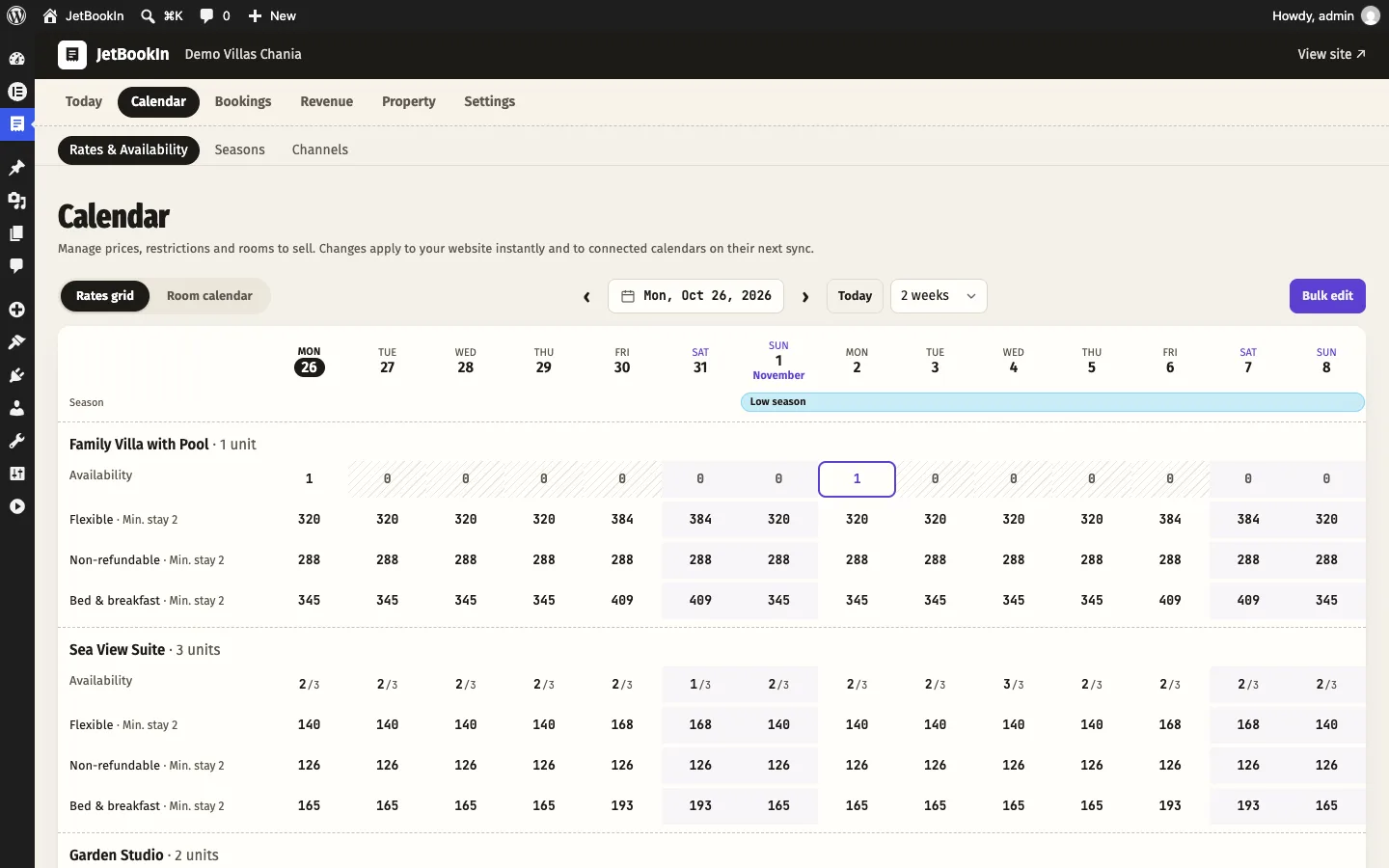
What you see, from the top:
- Season: a coloured band naming your seasons, when the dates shown fall in one.
- For each room type, its name and number of units, then:
- Availability: how many units are free each night, with /N rooms to sell when more than one. Closed or sold-out nights are hatched. Hovering shows e.g. 2 available · 1 booked/blocked · 3 to sell. A run of free nights boxed in by bookings that is shorter than the minimum stay is outlined (Gap of 2 nights, shorter than the minimum stay) – see Fill short gaps.
- One row per rate plan with the price of each night. The rate’s usual minimum stay is shown next to its name (· Min. stay 3); a night with a different one carries a small mark (5+). Closed-to-arrival and closed-to-departure nights have their own marks. A closed rate is hatched; a night without a price is marked as missing. Based-on rates show follows Flexible −10% and cannot be priced directly. Inactive rates say (inactive).
Working in the grid:
- Click a cell, or drag along a row to select several dates: the edit panel opens for those dates and that row. A cell of the Availability row edits rooms to sell and room status; a price cell edits that rate.
- Double-click a price (or focus it and start typing a number) to type a new price straight into the cell. Enter or clicking away saves; Escape cancels.
- With the keyboard, the arrow keys move between cells and Enter opens the edit panel.
- Occupancy (under the grid) shades each availability cell by how full it is.
When a room type’s prices run out within the next 60 days, an amber banner says Guests can’t book far ahead (e.g. Double Sea View can be booked only until 30 September), with links to open the grid or to keep the calendar open automatically.
Editing dates and Bulk edit
Clicking or dragging in the grid and the Bulk edit button open the same panel, Edit rates & availability. Bulk edit starts with the next 30 days and every room and rate selected. Every field starts empty or on No change: leave a field empty to keep it as it is. Click Save changes; the result says Updated N days. All changes are saved together or not at all.

Dates
- From and Until (including): the date range. The panel confirms it, e.g. 31 days selected: 1 Jul – 31 Jul.
- If you have seasons, chips at the top let you pick Choose dates or a season: the change then applies to every period of that season; past periods are listed as past, skipped.
- Apply to days of the week: click weekdays to change only those, e.g. Fri and Sat for weekend prices. None selected = (all days).
Rooms and rates
Tick the room types and, under each, the rate plans to change. Based-on rates are marked follows: they keep following their parent’s prices, so only their restrictions and status change.
Rooms to sell and room status
- Rooms to sell: how many units of the room type you offer on those dates. Use a lower number to hold rooms back, e.g. 3 of your 5 doubles for a wedding group. Each room type gets this number, or all its units when it has fewer.
- Reset to all units: back to selling every active unit.
- Room status: Closed stops selling the whole room type on those dates, all rates included (for example during a winter break); Open opens it again.
Prices
Change:
- Set the price: Price per night, e.g.
120. - By %: raise or lower each night’s current price, e.g.
-10or15. - By € (your currency): raise or lower by an amount, e.g.
-20.
Changes by % or amount move the prices already there; days without a price stay without one.
Restrictions
- Minimum stay (nights) and Maximum stay (nights): 0 = none.
- Book at least (days ahead): for arrivals on these days; 0 = no limit.
- Book at most (days ahead): e.g. 7 for a last-minute rate; 0 = no limit.
- Rate status: Closed stops selling the chosen rates only (stop-sell); Open sells them again.
- Closed to arrival and Closed to departure: Yes or No.
Restrictions explained
| Restriction | Which date counts | Example |
|---|---|---|
| Minimum stay | The arrival date. A stay arriving on a day with minimum 5 must be at least 5 nights, even if later nights say 2. | 5 nights for arrivals in August. |
| Maximum stay | The arrival date. | At most 14 nights on a promotional rate. |
| Closed to arrival | The arrival date: nobody can check in that day. | No arrivals on Sundays when there is no reception. |
| Closed to departure | The departure date: nobody can check out that day. | No departures on 15 August. |
| Book at least / at most N days ahead | The arrival date, counted from today. | A rate bookable only 30+ days ahead, or only within 7 days. |
| Rate status Closed | Every night of the stay. One closed night makes the whole stay unavailable on that rate. | Close the non-refundable rate at Easter. |
| Room status Closed | Every night of the stay, all rates of the room type. | Closed in winter. |
Fixed changeover days for the whole year (e.g. Saturday to Saturday) are easier on the room type: Arrival allowed on / Departure allowed on in Stay rules. Guests who try dates that break a rule see why, e.g. Minimum stay not met for these dates. or Arrival is not possible on this date.; the date picker on your site also shows the minimum stay for the arrival day they chose.
Seasons
Calendar → Seasons lets you name your periods once – High season, Easter, Low season – and give each its prices. Saving a season puts those prices on every day of it.

- Click New season.
- Name, e.g. High season, and a Colour on the calendar (seven colours to choose from).
- Periods: From and Until (including). Add period adds another range (e.g. July and the first half of September for the same season); Copy to next year adds the same dates a year later. A day belongs to one season at most: if two seasons overlap you get a message naming the other one.
- Deposit at booking (%): for valuable dates, at least this share of the stay is paid online at booking whatever the rate says; a card guarantee or paying at the property is not enough then. 0 = the rate decides. A stay with any night in the season uses it.
- Prices for this season: one row per active rate with its own prices: Every night, Fri & Sat nights (overrides the nightly price on Friday and Saturday nights) and Min. nights (1–60). Leave a field empty to keep the calendar as it is. Based-on rates are not listed: they follow their parent.
- Click Save season. The message says how many days got prices, e.g. Season saved · prices set on 92 days.
Important: saving a season writes its prices onto every day of it from today on and replaces changes you made to single days in it. Make one-off changes (a festival weekend) after saving the season, or in a season of their own.
The list shows each season with its dates, number of days, Prices for N rates and any deposit. Deleting a season keeps the prices and rules already on its dates. Seasons also appear as a coloured band in both calendars and as a choice in Bulk edit.
Keep the calendar open
In Settings → General → Keep the calendar open, set Keep open ahead (months). Every night, the days after the last one you set are filled from the same weekday a year before: prices, restrictions and closed days. What was closed then stays closed (e.g. a winter break); nothing you already set is changed. Saving the setting fills the dates straight away.
- Default 0 = off; up to 24. 12–18 suits most properties.
- It continues what you have already priced; a room type or rate that never had prices is left alone.
- Without it, the Guests can’t book far ahead banner reminds you when prices run out.
The furthest date guests can book at all is Settings → General → Bookable up to (days ahead), 730 by default.
Fill short gaps
Settings → General → Fill short gaps sells the nights a minimum stay would otherwise leave empty. Search, the calendar on your site and checkout all follow these rules.
- Last minute: arrivals within (days) and … can stay at least (nights): for arrivals in the next N days, the minimum stay drops to that many nights. Example: 5 and 2 – a guest arriving within 5 days can book 2 nights even if the minimum is 4. 0 = off.
- Allow stays that exactly fill the free nights between two bookings, whatever the minimum stay: if a unit has 2 free nights between a departure and the next arrival, a 2-night stay that fills them is allowed. Preparation days count as occupied.
- Only for arrivals within (days) (shown when the above is on): limit gap filling to arrivals in the next N days. 0 = any time.
- Price change for these shorter stays (%): e.g.
-10for ten percent less,15for fifteen percent more, 0 = same price. Applies only to stays shorter than the usual minimum.
These rules only ever lower a minimum stay; they never make it longer.
Booking window
In Settings → General → Booking window:
- Minimum notice before arrival (hours): 0 = same-day bookings allowed. E.g. 24 stops bookings for today and early tomorrow.
- Same-day bookings close at: e.g. 18:00, after which today can no longer be booked. Empty = no cutoff.
For limits per rate and date, use Book at least / at most (days ahead) in the grid instead.
Promotions and promo codes Pro
Revenue → Promotions, tab Promotions, click + New promotion and choose a kind:
- Special offer: a discount for stays in a date range.
- Early bird: for guests who book well in advance (starts at 60 days).
- Last minute: for bookings made shortly before arrival (starts at 7 days).
- Long stay: for stays of a minimum length (starts at 7 nights).
- Promo code: only with a code you share (newsletter, returning guests, partners).

| Field | What it does |
|---|---|
| Name shown to guests | E.g. Book early & save. Shown next to the discount. In other languages holds translations after the first save. |
| Code (promo code only) | Letters, digits, – and _, in capitals. Leave empty to generate one. Click the code in the list to copy it. |
| Discount | A number and %, € per stay (your currency) or free nights (cheapest), e.g. 7 nights for the price of 6 = 1 free night on a long stay. |
| Status | Active or Paused. |
| Booked at least … days before arrival | Early bird only. |
| Booked at most … days before arrival | Last minute only. |
| Minimum nights | Shortest stay that gets the discount. |
| Arrival from / Arrival until | The arrival date must fall in this range. Empty = any date. |
| Bookable from / Bookable until | When guests can book with it, e.g. a Black Friday weekend. Empty = now / no end. |
| Maximum uses | How many confirmed bookings can use it. Empty = unlimited. The list shows used 3 times / 10. |
| Room types, Rate plans | All rooms / All rate plans, or click the ones it applies to. |
| Can be combined with other promotions | Off by default. |
How discounts add up: when several promotions apply, guests get the best one plus any that can be combined, never more than the room price. Discounts reduce the room price (the nightly prices), before VAT; the climate resilience fee is not discounted, and cleaning and extra-guest fees are not reduced. A promotion with a code applies only when the guest enters that code at checkout (Have a promo code?).
Without Pro, the Promotions screen shows This is a JetBookIn Pro feature and promotions are not applied; they are kept for when Pro is active.
Extras Pro
Revenue → Promotions, tab Extras, + New extra: add-ons guests can buy with their stay at checkout, under Add to your stay – an airport transfer, breakfast, late check-out, a welcome basket.
| Field | Default | What it does |
|---|---|---|
| Name, Short description | empty | Shown to guests; both can be translated under In other languages. |
| Price | 0 | In your currency. |
| Charged | per stay | per stay, per night, per person or per person per night (persons = adults + children). |
| Max quantity | 1 | How many a guest can add (1–20), e.g. 2 transfers. |
| Is it a meal? | No | Breakfast, Lunch or Dinner. Meals are not offered with rates that already include them: no breakfast extra on a Breakfast included rate, no breakfast or dinner on Half board. |
| Price includes / is subject to VAT | on | Counts only while VAT is on for the property. |
| Offered with | All rooms | Or only the room types you click. |
| Status | Offered | Hidden stops offering it. |
Extra guests and children
The nightly price in the grid is for the number of adults in the room type’s Guests included in price. On top of it, per night, come each extra adult’s fee and each child’s charge (from the property’s age bands, or the room’s extra child fee), and once per stay the cleaning fee. Fewer adults can pay less with Price for fewer guests. All of these are set in Property → room type → Guests & fees and Property → Children. Promotions do not reduce these fees.
How guests see prices and policies
In search results and in a room’s booking box, each available rate shows:
- its name and meals (Room only, Breakfast included…);
- the cancellation line: Free cancellation up to 7 days before arrival (in green), Free cancellation, Non-refundable, or – when the free-cancellation date has already passed for these dates – what cancelling costs now, e.g. From now on: 30% of the stay;
- the payment line: Pay €150 now, the rest at the property or No prepayment needed (nothing is shown for a rate paid in full);
- the total for the stay and the number of nights, with any promotion (Book early & save −€48) and, when ΤΑΚΚ is paid at the property, + €16 ΤΑΚΚ paid at the property;
- Only 2 left when few units remain.

A rate that cannot be booked for the chosen dates shows the reason instead of a price, e.g. Minimum stay not met for these dates., This rate must be booked further ahead of arrival., Not available on some of these dates. or Too many guests for this room. Rates set to Offer only while free cancellation is still possible are simply not listed once that time has passed.
At checkout the price table lists Accommodation (N nights), Extra guests, Cleaning fee, the extras, promotions, VAT 13% or Incl. VAT 13%, the municipal levy and the Climate crisis resilience fee, then the Total and Pay now. When the ΤΑΚΚ is paid on arrival it is listed after the total as Not included in the total: paid at the property on arrival. On the guest’s booking page and in e-mails the cancellation policy is written out with dates, e.g. Free cancellation until 13 July 2026, From 14 July 2026: 50% of the stay; periods that already ended are left out, and the one running now reads From now on: ….
Examples
Three apartments in Crete
- Each apartment has a Flexible rate (Moderate preset, 30% deposit, balance charged automatically 14 days before arrival) and a Non-refundable rate based on it at −10%, paid in full, Non-refundable preset.
- Seasons: Low (April–May, October), Mid (June, September), High (July–August, minimum 5 nights, 50% deposit at booking). Prices entered per apartment for the Flexible rate only.
- Keep open ahead: 15 months. Fill short gaps: last minute within 7 days can stay at least 2 nights; gaps between bookings allowed, −10% for those shorter stays.
- Promotion: Early bird, 10%, booked at least 90 days before arrival, Flexible rate only.
A 20-room hotel
- Rates per room type: Bed & breakfast (Breakfast included, Flexible preset, nothing paid upfront with the card guarantee), Non-refundable (based on it −12%, paid in full), Room only (based on it −€15 per night).
- Extras: Dinner (meal: Dinner, per person), Airport transfer (per stay, max 2).
- Weekend prices with Bulk edit: Fri and Sat only, By %
15. - A conference week: Rooms to sell 12 of 16 doubles; Closed to arrival on the Saturday before.
- Promo code
WELCOMEBACK, 8%, combinable, sent to returning guests.
Questions
My room shows on the site but says it is not available.
Usually the dates have no price on any active rate, or a restriction blocks them (minimum stay, closed to arrival, closed rate or room). Look at those dates in the grid; hover a cell for details.
I changed a price in the grid but a season “overwrote” it.
Saving a season writes its prices over every future day of it. Change single days after saving the season, or leave that rate’s season fields empty.
Why can’t I type a price on one of my rates?
It is based on another rate (follows …) and takes its prices from it. Change the parent’s prices, or set Prices come from to Own prices.
Can I charge more for weekends?
Yes: in a season use Fri & Sat nights, or in Bulk edit select only Fri and Sat under Apply to days of the week.
How do I stop one-night stays only in summer?
Bulk edit the summer dates with Minimum stay 2 (or set Min. nights in the summer season), and add last-minute gap filling if you want to sell the odd night close to the date.
Do promotions apply to bookings from Booking.com or Airbnb?
No. Promotions apply to bookings on your website. Platforms only receive which dates are booked.
A guest booked a flexible rate after its free-cancellation date. What do they see?
The rate box and their booking page say what cancelling costs from now, e.g. From now on: 50% of the stay. If you prefer not to sell the flexible rate that late, tick Offer only while free cancellation is still possible.
Does deleting a season remove its prices?
No. Prices and rules already on its dates stay; only the name, colour and the season’s saved prices go.